Resize Photos to 2048px for Facebook in Bulk (No Upload)
Published 16 September 2026 · by Tekiba
Set the longest edge to 2048px, save as JPEG, and upload those files rather than the ones straight off the camera. We could not verify 2048px as a current Facebook recommendation: the help URL we were pointed to was unavailable when we checked, and nothing we could find in the Help Centre today names a pixel size — the check is below. What can be checked is this tool. SignetDrop does the batch in your browser: ten photos at a time for free, writing at most 2048px on the longest edge.
Where the number comes from, and what we could not confirm
If you are here, you have already met the number 2048, and we could not verify it in Facebook's
own documentation. On 16 September 2026 we opened facebook.com/help/266520536764594 in a browser: it answers with "This Page
Isn't Available. The link may be broken, or the page may have been removed." Searching the
current Help Centre for photo quality, high resolution photos and 2048,
and opening the articles it returns, finds no page that names a pixel size.
So this page will not tell you that Facebook recommends 2048px — nor that no such recommendation exists, only that we could not find one. The figure that can be checked here is ours: 2048px is the longest edge the free version writes, whichever resize mode you pick. Whether that is enough depends on the photograph and how it will be looked at.
Doing the whole batch in the browser
-
Choose the photos. Drag them onto the page, or press Choose photos. The pictures stay on your disk: the browser hands the page a reference, and nothing is sent.
-
Set the longest edge to 2048 and the format to JPEG. A longest edge is the setting that suits a mixed batch: 2048 means the long side becomes 2048px whichever side it is, so landscape and portrait frames share one longest edge rather than one width. A 4032×3024 photo becomes 2048×1536, and a 3024×4032 photo becomes 1536×2048. Nothing is ever enlarged: ask for 2048 from a 1200px photo and it stays at 1200px.

One number for the whole batch. The note under it is the free ceiling, which applies whichever mode you pick. -
Run it, then upload the files yourself. Each photo is decoded, drawn onto a canvas at the new size, re-encoded and added to a ZIP built in the page. Unpack it and upload those files the way you normally would — there is no Facebook connection here to log into.
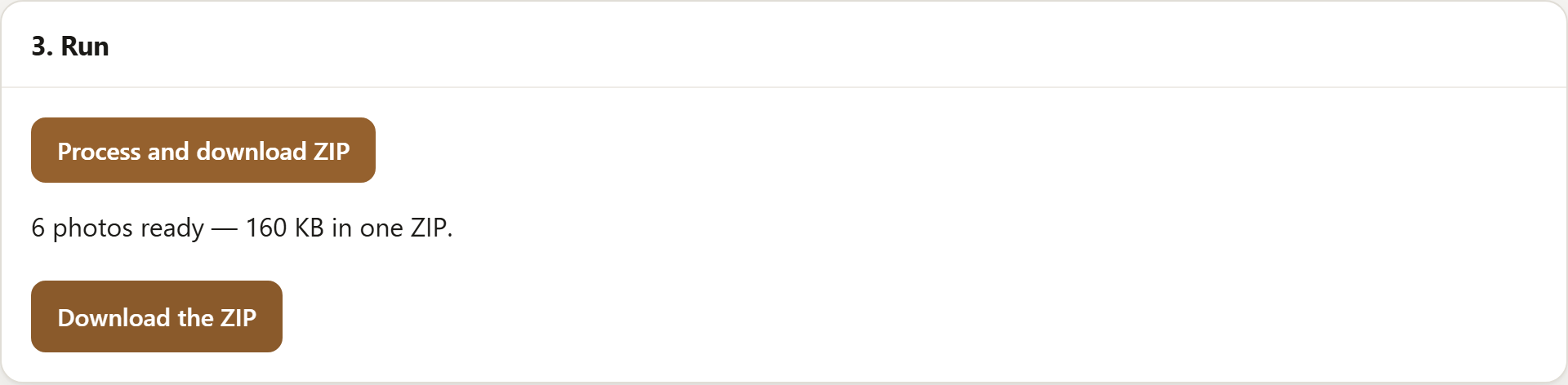
The archive is assembled in the tab. Nothing was uploaded to build it.
The quality setting
JPEG is the default output here and the quality slider starts at 86, a reasonable place to leave it for photographs going onto a screen. It covers 30 to 100: at 100 the file is considerably larger, and whether that extra quality is visible depends on the photograph and the screen; low settings show blocking in flat areas such as sky. PNG has no slider, because PNG compression is not lossy — which for a photograph usually means a much larger file. If it matters, write the batch twice and compare both against the original. Bulk resize and rename covers the other resize modes and the naming patterns.
What comes off along the way
Because every photo is redrawn and re-encoded, the output carries no EXIF — no GPS coordinates, no camera serial number, no capture timestamp — unless you are on the paid version and switch Keep the original EXIF on, which is off by default. That cuts both ways: good before anything goes public, and the capture dates are gone from the copies you upload too. Remove location data from photos before selling online covers what is in a phone photo and the paid option for keeping it, which works from a JPEG to a JPEG only; watermark multiple photos without uploading them covers adding a mark in the same pass.
What this does not do
It gets the file you hand over into a sensible shape. It does not follow it: we cannot tell you what a service does to an upload — we could not even verify a published size — and what happens to the file after you upload it is not ours to control or to promise anything about. Nor does it upload for you, which is rather the point. And the 2048px ceiling on the free version is a limit we impose, not advice: a free batch is ten photos at a time, up to 2048px on the longest edge, and wanting both more photos and more pixels is what the paid version is for — $29 once, not a subscription, with the full split on the pricing panel. Either way it never writes our name onto your photos.
Open SignetDrop and set the longest edge to 2048. The pictures stay on your disk.
Questions
Does Facebook resize my photos anyway?
We cannot tell you: the help URL we checked was unavailable, and nothing we could find in the Help Centre today says what happens to an upload or at what size. Re-encoding is the ordinary way to serve images at scale, so it is reasonable to expect that the file you send is not the file that gets served — but that is an expectation, not a finding. What is in your hands either way is the file you hand over.
Should I use PNG or JPEG for Facebook?
JPEG for photographs, which is what this tool defaults to. PNG compression is not lossy, so a PNG does not lose a generation the way a re-encoded JPEG does — but for a photograph it is usually a much larger file for a difference that may not show at all. PNG earns its place on screenshots, line art and flat colour, where JPEG's blocking shows around hard edges. If you are unsure, keep your originals and send JPEG.
Will resizing to 2048px make photos blurry?
Scaling down discards pixels, so the result holds less detail than the original; how much of that you notice depends on how large it is then shown. The obvious kind of softness comes from the other direction — a small image stretched up — and this tool refuses to do that: ask for 2048px from a 1200px photo and it stays at 1200px. Ask for less than it has and it does scale down. JPEG compression is the other thing that can show, and that is the quality slider's job rather than the resize setting's.
Open the tool, or read about resizing and renaming a batch, watermarking one, clearing location data and what eBay and Etsy allow on a listing photo and squaring a batch without cropping it, fitting square photos to a 3:4 frame or whether resizing removes EXIF, or see what this page loads and counts.